Set Up the StratusHUB Mobile App
Learn how to install and sign into the new, StratusHUB mobile app for the first time.

Written by Val Campos
Updated at October 2nd, 2026
Table of Contents
The StratusHUB Mobile App
With the new StratusHUB mobile app, you can place and receive calls from a mobile device using your extension number. Whether you are away from the office, working from home, or travelling for work, you can keep up with your business calls through your personal device.
Besides pacing and receiving calls, the StratusHUB mobile app allows you to check your call history, create and call contacts, check your voicemails, and much more!

Install the App
The StratusHUB mobile app can be downloaded on both Android and iOS devices. To find the StratusHUB app's listing for your particular device, use one of the links or QR codes below depending on the type of cellphone you are using:
For cellphones that use the Google Play Store:
https://play.google.com/store/apps/details?id=com.spectrumvoip.mobile

For iOS cellphone that use the Apple App Store:
https://apps.apple.com/us/app/stratushub-mobile/id1658272625

Sign into the App
To get started in the app, sign into the application with your Stratus username and password. To do so…
- Open the application.
- On the login page, use the Username and Password boxes to type in your Stratus credentials.

Forgot Username and Password
Forgot Username
To find out the login name to use for logging into your StratusHUB mobile app…
1. Go to the Stratus web portal with the following link:
https://stratus.spectrumvoip.com/portal/
2. Click the Forgot Login Name link.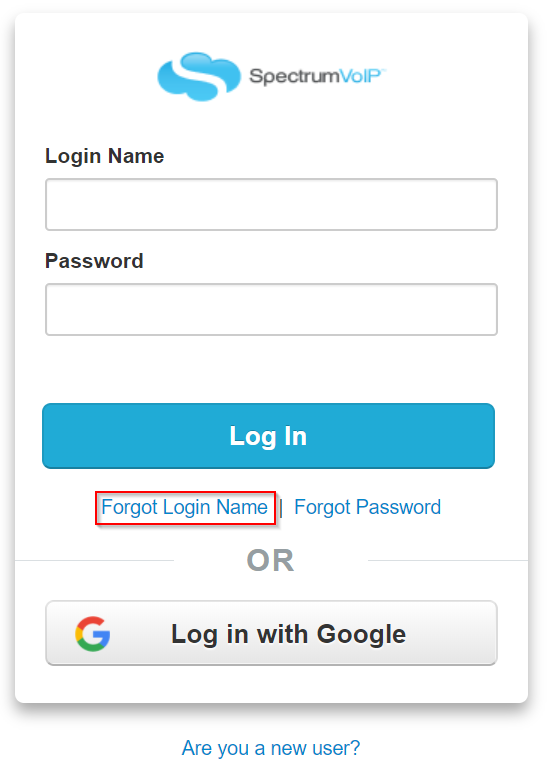
3. On the Forgot Login Name menu, type your email address in the Email box.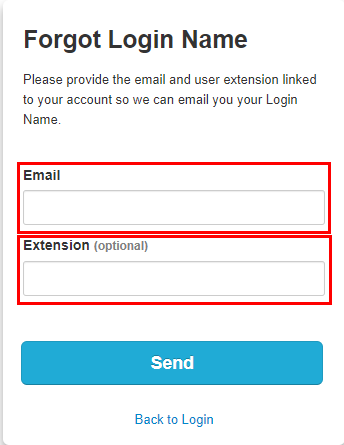
4. If known, type your extension number in the Extension field.
5. Click the Send button.
✓ Clicking Send should send out an email with the login name:
Reset Your Password
To reset a forgotten password so that you can log into the StratusHUB mobile app…
1. Go to the Stratus web portal with the following link:
https://stratus.spectrumvoip.com/portal/
2. Click the Forgot Password link.
3. In the Forgot Password menu, type your Stratus username in the Login Name box.
4. Click the Send button.
✓ Clicking Send should send out a password recovery email that looks similar to this: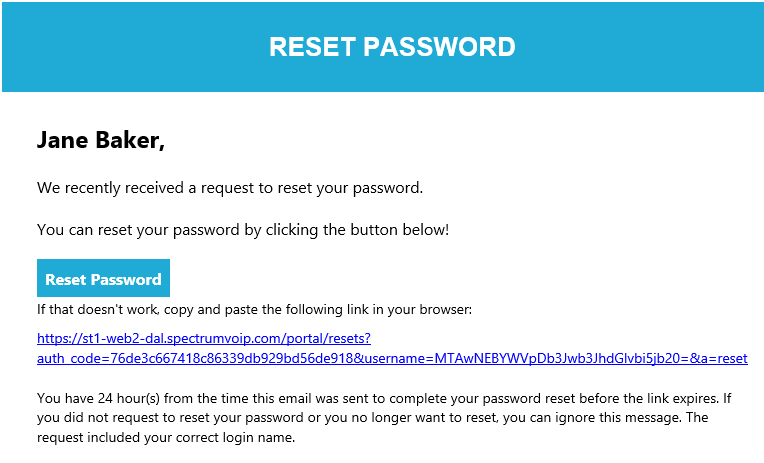
5. In the password recovery email, click the Reset Password button and follow the prompts.
Set Up Permissions
Once you are signed in for the first time, the app will ask you to allow certain permissions. You can always make changes to these permissions and settings on your mobile device later.
- To receive push notifications for messages and calls, tap Allow on the “'StratusHUB' would like to send you Notifications” prompt.
- To allow the app to use your phone's microphone for calls, tap Allow on the "'StratusHUB' would like to access the Microphone” prompt.
To adjust these permissions later:
- Navigate to your phone's Settings.
- Scroll and tap StratusHUB app in the list of your cellphone's applications.
- Adjust the permissions shown for the app as needed.
Check Your App's Registration Status
Upon successfully signing into this application, the icon showing your name should appear as light blue with a solid line. This will indicate that the app was able to register to your Stratus account.
| Icon Appearance | Color | Description |
|---|---|---|
|

|
|
The app was able to successfully connect to the internet and register to your extension number. It can now receive and place calls. |
|

|
|
The app is in the process of registering after opening the app. If this icon stays Red, the app is unable to register to your extension number. |