Record Calls Using the StratusHUB Desktop App
Learn how to record calls using the StratusHUB Desktop App.

Written by Val Campos
Updated at September 9th, 2026
Table of Contents
Record a Call
The StratusHUB Desktop App will have buttons available that you can use to control how an active call is recorded.
NOTE: These buttons will only record snippets of calls if call recording is not already enabled for your user, the call queue a call is dispatched from, or your company's whole account.
If call recording is enabled using one of the methods below, the whole call would be recorded by default.
To learn more about call recording, review the guide below:
Record Calls as a Stratus User
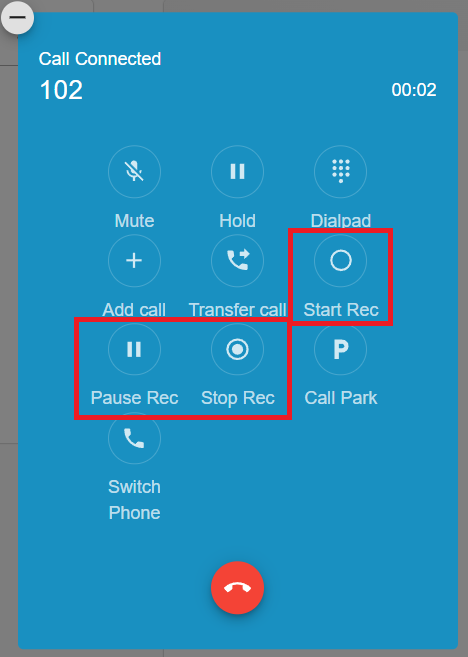
To use these buttons to record an ongoing call…
- Click Start Rec to start recording a call.

✔ When clicked, a REC notice
 will appear above the duration of the call.
- While actively recording, you can click the Pause Rec and Resume Rec buttons to stop recording portions of the call.


✔ The REC notice will update to show a pause symbol:

- Click Stop Rec to stop recording a call.
Review and Download a Call Recording
When you have a call that was recorded, you can listen to and download that call using the desktop app.
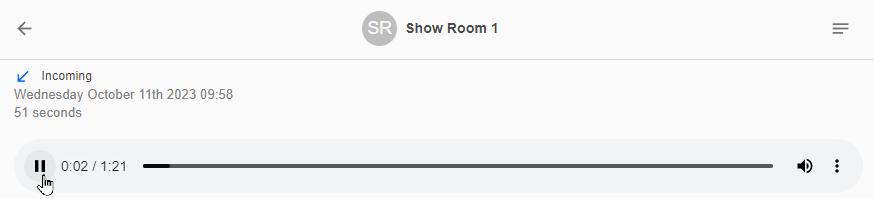
To download the call's recording…
-
Select the call that was recorded.

- Click the Options icon.
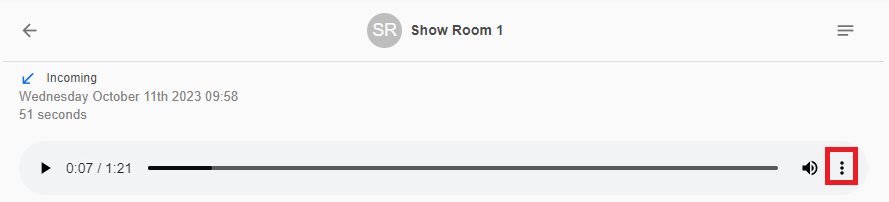
- Select Download to download an audio file of the call to your PC.
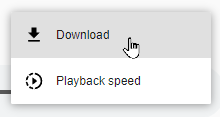
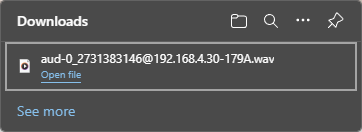
✔ You should see the call's audio file downloaded to your PC.