Export Your Call History Logs
Learn how to easily export your call history logs for record-keeping.

Written by Val Campos
Updated at June 8th, 2026
Table of Contents
On the Call History page, you can view all of the calls your users have been handling.

You can export the call history as a spreadsheet in a CSV format. From there, you can open the information in Microsoft Excel or other spreadsheet software for further manipulation.
To download a spreadsheet of the call logs shown in the table, click the Export button.
Doing so will download a .CSV spreadsheet that you can view, edit, and store as needed.

Schedule Call History Exports
To schedule a call history export…
- In the Call History page, click the Scheduled Exports button.

✔ Doing so will pull up the Scheduled Exports page where previously created export tasks can be edited or downloaded.

- In the Scheduled Exports page, click the New Export button.

✔ The Schedule New Export modal will appear.
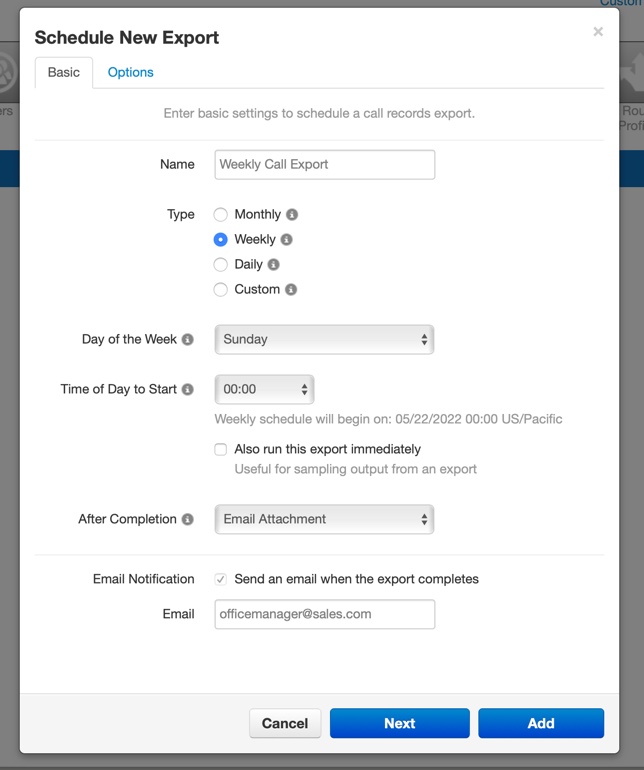
- Fill in the following field values:

| Field | Description |
|---|---|
| Name |
Type a descriptive, identifiable name for this export of call logs. The name can be no more than 64 characters long. No special characters other than a hyphen, space, or underscore. |
| Type |
• Monthly will send a report on the first of every month. • Weekly will send a report for the last 7 days, including the current day. For instance, select "weekly" and then "Sunday" to receive data from the previous work week (Monday - Sunday). • Daily will send a report at the same time every day. • Customize opens a wide range of capture periods. |
| After Completion |
After scheduling the export, choose where the data should be exported to. You can choose from the following options: • Do Nothing - Download the data to the portal. • Email Attachment - Have an email with an attached spreadsheet of the call logs sent to the email address entered in the Email box below. • Upload via FTP If you have a server that supports FTP (File Transfer Protocol) uploads, type the server's information to have these call logs uploaded directly to that server. • Upload via SFTP - If you have a server that supports SFTP (Secure File Transfer Protocol) uploads, type the server's information to have these call logs uploaded directly to that server. |
| Email Notification |
This option will send an email notification to the email address entered in the Email box when an export is ready to be reviewed/downloaded. If you have selected Email Attachment for the After Completion option, then the email will include an attached spreadsheet of the call logs. This option will be automatically enabled if the After Completion option is set as Email Attachment. |
- Visit the Options tab to configure how and what data should be shown in the export.

Formatted Export Examples
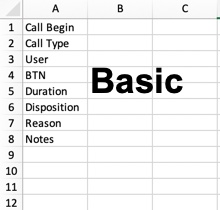
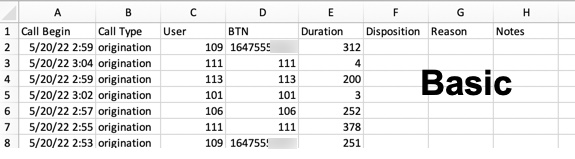
Basic Export
Advanced Export

Standard Export
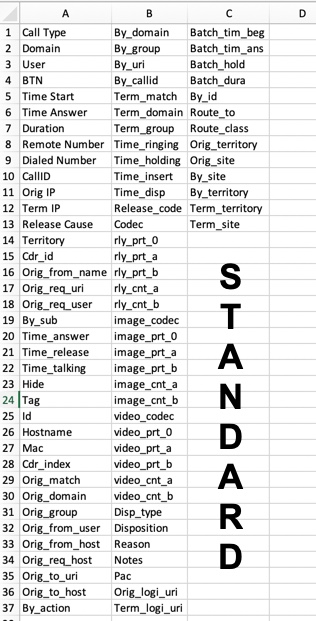
✔ Once you have added a Scheduled Export, it will be listed alongside any others that have been added.

These listings will include columns that show the format of the spreadsheet that will be shown/sent, the period of time that will be recorded for the exports, and the date the next export will be available.
Each scheduled export will have icons that can be used to edit the settings of the export, download the export's spreadsheet, and delete the scheduled export completely.
